Upgrade and Zenburn the Console Window

Background

In Windows, console windows (aka command line or “DOS” windows) are special. In a UNIX-like environment a terminal emulator talks to a local virtual teletype and connects to three text streams: standard in, standard out and standard error. From the first version of Windows NT to now, the client-server runtime subsystem automatically creates a special window environment for any command-line program or shell. In fact, up until Windows 7, the window was actually owned by csrss.exe which runs with system privileges. These windows mostly look like the rest of Windows but they are different in deep ways. Even if you remove the entire graphics and windowing infrastructure from Windows as in Windows Server Core, you are left with the GINA logon screen and a console window which looks exactly the same because the code to draw them is in csrss.exe rather than the normal window manager. That’s also the reason why they aren’t themed in Windows XP. Console Windows also can’t be resized in the usual way. On the other hand, Console windows offer a richer programming environment than sdtin,stdout and sderror because they always have a title bar and exist within a window station which means that services like the clipboard can be assumed. The gist is that for reasons of backwards compatibility and security, it is difficult for Microsoft to change very much about how console windows work. And besides, it’s a nerd feature that normal people never use.

powershell-standard-console-scrollbars

For me, there are some minor annoyances with console windows that I mostly try to ignore:

  1. Console Windows aren’t easily resizable. You have to change the definition of the rows and columns. Dragging the window borders either creates scrollbars or does nothing.
  2. Copy operates in a block mode rather than a line mode. That means if you copy text, you end up having to fix it where line breaks were added or you can accidentally leave out columns and end up with garbage.
  3. Marking for copy blocks the execution of anything trying to write to the window. This makes “Quick Edit” mode dangerous because clicking on the window tends to freeze it. Because of item 1 and 3, I end up creating giant console windows and leaving them that way. The shortcuts that PowerShell creates for itself do this by default.

Enter Console.exe

Its not easy to replace console windows with something else. If you use a terminal emulator with VTYs in the POSIX subsystem (like xterm in the POSIX/SUA subsystem) some console applications that expect to interact with the console window or the window station service won’t run at all or only work in a special mode, like PowerShell. Also, the VTYs exist in the POSIX subsystem and don’t have access to your current window station, so you can’t start windowing applications from a terminal on a VTY (like “explorer .” to open Explorer in the current command shell directory).

Console (aka Console2) is a modern terminal environment like a Gnome Terminal or Konsole  for Windows that is 100% compatible with applications that expect a console window running in a window station. That’s because it works by hooking and hiding the console window created by CSRSS while providing a richer user environment. I gave up on this thing when I started using Vista x64 because it was broken. It has matured a lot since then and the latest beta works great with Windows 7 x64.

  • Arbitrary window resizing by dragging the borders!
  • Copy selects lines and keeps line breaks intact like xterm et al. (Hint: the default is SHIFT+{mouse-select} to select, {mouse-click} to copy and {mouse-middle-click} to paste.)
  • Available tabbed environment.
  • Easily configure fonts without editing the registry.
  • Save multiple shell environments (like visual studio command prompt, cygwin, powershell, etc.)
  • Also, there are toys like transparency and background images.
  • All the key bindings and window layout stuff is configurable.
  • The windows console function key bindings (like F7 for history) still work.
    Unfortunately, selecting text still blocks the underlying windows console and therefore the execution of any script or application that might be generating text, but we get a configurable quick edit behavior where the defaults won’t have you accidentally selecting and blocking a window.

It Just Needs Zenburn

Zenburn is a low contrast color scheme originally developed for Vim and subsequently ported to almost everything. It’s a dark, low eye strain theme that is very addictive.

Here are Zenburn colors for console.xml:


<colors>
        <color id="0" r="62" g="62" b="62"/>
        <color id="1" r="100" g="100" b="175"/>
        <color id="2" r="0" g="128" b="0"/>
        <color id="3" r="0" g="128" b="128"/>
        <color id="4" r="51" g="35" b="35"/>
        <color id="5" r="170" g="80" b="170"/>
        <color id="6" r="220" g="220" b="0"/>
        <color id="7" r="220" g="220" b="204"/>
        <color id="8" r="192" g="128" b="128"/>
        <color id="9" r="175" g="175" b="255"/>
        <color id="10" r="127" g="159" b="127"/>
        <color id="11" r="140" g="208" b="211"/>
        <color id="12" r="227" g="113" b="113"/>
        <color id="13" r="200" g="128" b="200"/>
        <color id="14" r="240" g="223" b="175"/>
        <color id="15" r="255" g="255" b="255"/>
</colors>

Console.sf.net with Zenburn colors showing muted red error.zenburn-console

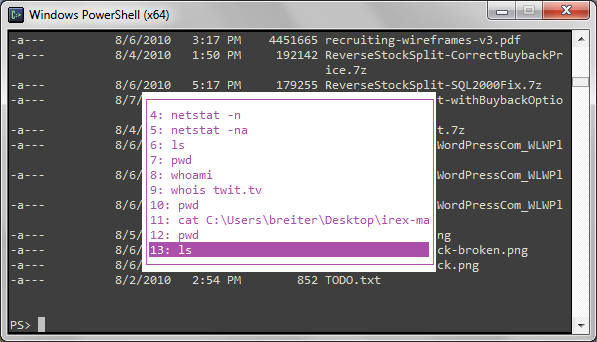
Console.sf.net with muted colors showing F7 history popup.zenburn-console-popup
Console.sf.net with Zenburn colors, multiple tabs and transparency. (The elephant is my desktop wallpaper.)

console-tabs-transparency

Use Image Hijacking to Globally Replace Notepad.exe

I like to use a progammer’s text editor called EmEditor. Some people like Notepad++, vim, etc. You can change file associations but some things are just hard-coded to call notepad.exe. Notepad.exe is a protected system file which makes it hard/unsafe to replace.

Instead of replacing it, you can hijack calls for notepad.exe and redirect them to another text editor by registering a fake debugger.

You just need a tiny script to capture the arguments being sent to notepad and send them to your text editor of choice, instead. Replace the paths in the example with the paths and text editor for your system.

Script

 var shell, args="",
    editor = "C:\\Program Files\\EmEditor\\EmEditor.exe";
if( WScript.Arguments.length > 0 ){
	for( i=1; i<WScript.Arguments.Length; i++ ){
		args += WScript.Arguments(i) + " ";
	}
	shell = new ActiveXObject("WScript.Shell");
	shell.Exec("\"" + editor + "\" " + args);
}

Registry

new-item 'HKLM:\software\Microsoft\Windows NT\CurrentVersion\Image File Execution Options\notepad.exe'
Set-ItemProperty 'HKLM:\software\Microsoft\Windows NT\CurrentVersion\Image File Execution Options\notepad.exe' -name  Debugger -value 'wscript "C:\Program Files (x86)\Utilities\replace-notepad.js"'

Update

It’s been pointed out by commenter “MM” that files with multiple spaces together in the name break the WScript hijack. In this scenario, the Dubugger redirect splits the file name on whitespace and discards the extra whitespace. I put together a little hijack in C# that fixes this problem as long as there aren’t two or more files with names that differ only by the amount of whitespace between words in the file name. If that’s the case, you’re out of luck and should probably think about why you are naming files this way. Otherwise, this slightly fancier hijack will handle files with multiple spaces separating words in the name.

using System;
using System.Diagnostics;
using System.IO;
using System.Linq;
using System.Text.RegularExpressions;
using System.Windows.Forms;

class Program
{
	public static void Main(string[] args)
	{
		string handler = args[0];
		
		if(args.Length == 3) Process.Start(handler, string.Format("\"{0}\"", args[2]));
		else if(args.Length > 3)
		{
			string dirplus = args[2];
			int index = dirplus.LastIndexOf("\\");
			var dir = new DirectoryInfo(dirplus.Substring(0,index));
			var filepart = dirplus.Substring(index + 1);
			var expression = filepart + "\\s+" + string.Join("\\s+", args.Skip(3));

			var names = dir.GetFiles(filepart + "*").Select(x => x.Name);
			var files = names.Where(x => Regex.IsMatch(x, expression));
			if(files.Count() > 1)
			{
				MessageBox.Show(
					string.Format("{0} possible matches found with file names that differ only by spaces between words.\r\nChoosing the first match.", files.Count()), 
					"Warning", 
					MessageBoxButtons.OK, 
					MessageBoxIcon.Warning);
			}	
				 
			Process.Start(handler, string.Format("\"{0}\"", files.First()));
		}
	}
}

> csc /target:winexe .\hijack.cs

In the regsitry, set the Debugger like this:

Set-ItemProperty 'HKLM:\software\Microsoft\Windows NT\CurrentVersion\Image File Execution Options\notepad.exe' -name  Debugger -value '"C:\Program Files (x86)\Utilities\hijack.exe" "C:\Program Files\EmEditor\EmEditor.exe"'

Replace Task Manager with Process Explorer x64

Process Explorer has a “Replace Task Manager” option. On x64 Windows, this doesn’t work right. Instead of replacing Task Manager, it ensures that Task Manager can never run.

This feature works through an image hijack. What is supposed to happen is Process Explorer is supposed to register itself as the debugger for Task Manager. It doesn’t act as a debugger, instead, it just launches itself.

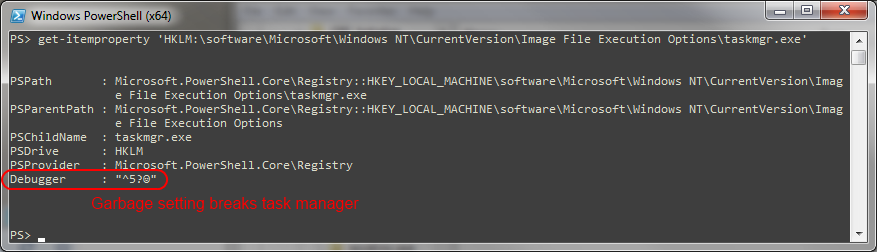
Here is the garbage that gets written by default.

taskmgr-img-hijack-broken

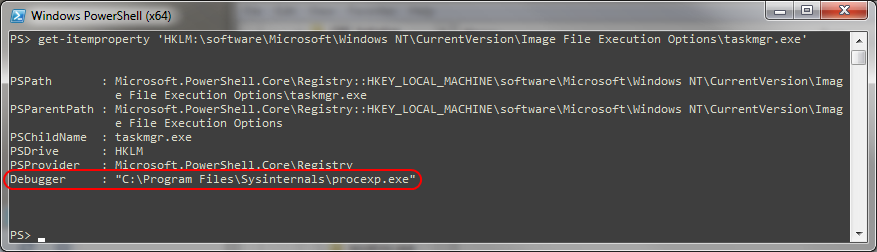
The Debugger value should be the fully qualified path to where procexp.exe lives. Unfortunately, procexp wrote some garbage in there.

Set-ItemProperty 'HKLM:\software\Microsoft\Windows NT\CurrentVersion\Image File Execution Options\taskmgr.exe' -name Debugger -value "C:\Program Files\Sysinternals\procexp.exe"

taskmgr-img-hijack

Now Task Manager is magically Process Explorer.


Boot Camp 3.1.3: Cirrus Audio Update

The Boot Camp update for MacBook Pro (13-inch, Mid 2010) (BootCamp_3.1.3_64-bit.exe) contains Cirrus Audio driver 6.6001.1.25 from 4/28/2010 which is newer than the 6.6001.1.21 version from Boot Camp 3.1. This driver works fine in a 2009 MacBook Pro 15-inch except that the package is set up to refuse to install on anything except the aforementioned new MacBook.

I’ve been having a problem with intermittent pops and crackles on my external speakers that seems to be a software/driver issue, so I wanted to give this update a whirl. So far, it seems like 6.6001.1.25 has fixed my pops and crackles problem.

7-Zip can extract the driver from the packaging. It’s just a matter of digging it out. Inside of Boot Camp_3.1.3_64-bit.exe is BootCampUpdate64.msp (a windows installer patch file). 7-Zip can unpack that into some cryptically named directories. Buried in there is a file called Binary.Cirrus_Audio_Bin which is actually some form of archive. Inside of that thing are the driver files.

Once you have Binary.Cirrus_Audio_Bin unpacked, you can point Device Manager at the unpacked location to update your Cirrus Audio driver.

I’m scratching my head a bit, wondering why Apple didn’t generally release this driver to all compatible hardware.

beforeafter

Best Visual Studio 2010 Extension Feature

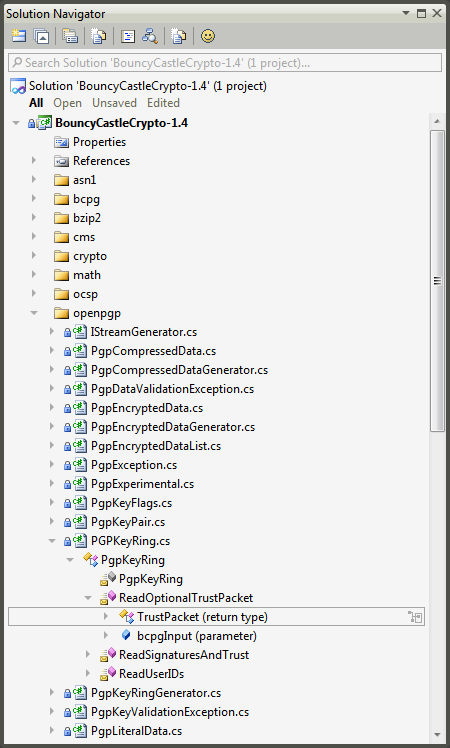
The coolest Visual Studio 2010 extension feature that I have seen is the Solution Navigator which is a component of the Productivity Power Tools extension.

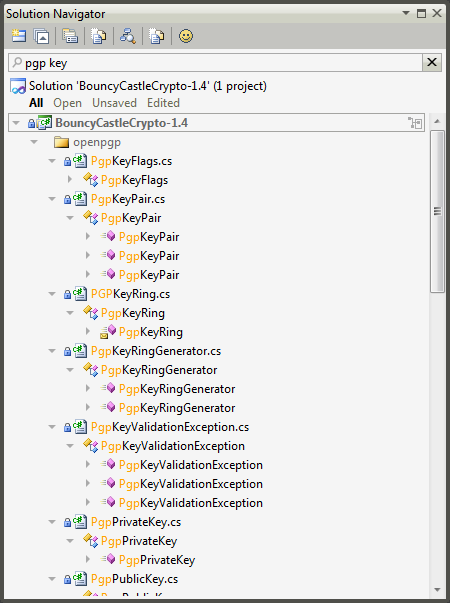
Solution Navigator combines the Solution Explorer and Class Explorer with search and some useful predefined filters: All, Open, Unsaved and Edited. It’s fantastic for navigating large solutions.

Types Shown in Files

class-all

Filter to Open Files

class-open

Search Types

class-search

Prettify 7-Zip

icons7-zip is a great, free and open source archive utility for Windows. It comes in x86 and x64 flavors with GUI and command-line interface and supports a ton of archive formats.

  • Packing / unpacking: 7z, ZIP, GZIP, BZIP2 and TAR
  • Unpacking only: ARJ, CAB, CHM, CPIO, DEB, DMG, HFS, ISO, LZH, LZMA, MSI, NSIS, RAR, RPM, UDF, WIM, XAR and Z.

Unfortunately, the GUI is not the prettiest and the associated file icons are 32×32 and 16×16 8 and 4 –bit color. Extremely, way retro.

There is a nifty theme manager for 7-zip that scripts Resourcer to replace the icons embedded in the 7-zip executable with new icons of your choice.

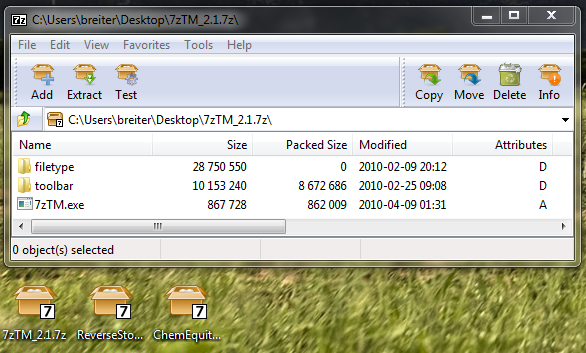
There are a ton of filetype and toolbar icon sets in 7-zip Theme Manager but the most complete and consistent pairing is the "Tango 2" toolbar icons with the "Tango 1" filetype icons from the Tango project.

Here’s what the Tango-ized 7-Zip looks like.

tangoized-7zip

Mossad Used Blackberries During Assassination?

Some back story on the decision of UAE to ban Blackberry data service. It may be that the Mossad used pre-paid Blackberry handsets to communicate securely while when it assassinated Hamas operative Mahmoud al Mabhouh in a Dubai hotel last January.

via http://twit.tv/tnt46

MSFT Help Viewer Duplicate Entries

update-helpMicrosoft Help Viewer 1.0 is a new document database that ships with Visual Studio 2010. It is basically an offline version of the “lightweight” view of the MSDN library online. It even runs in its own little web server and is accessed through a browser.

It ships with a number of categories of documentation including documentation for the .NET Framework version 4.0. You can install additional documentation from online or offline sources, including the .NET Framework 3.5 documentation.

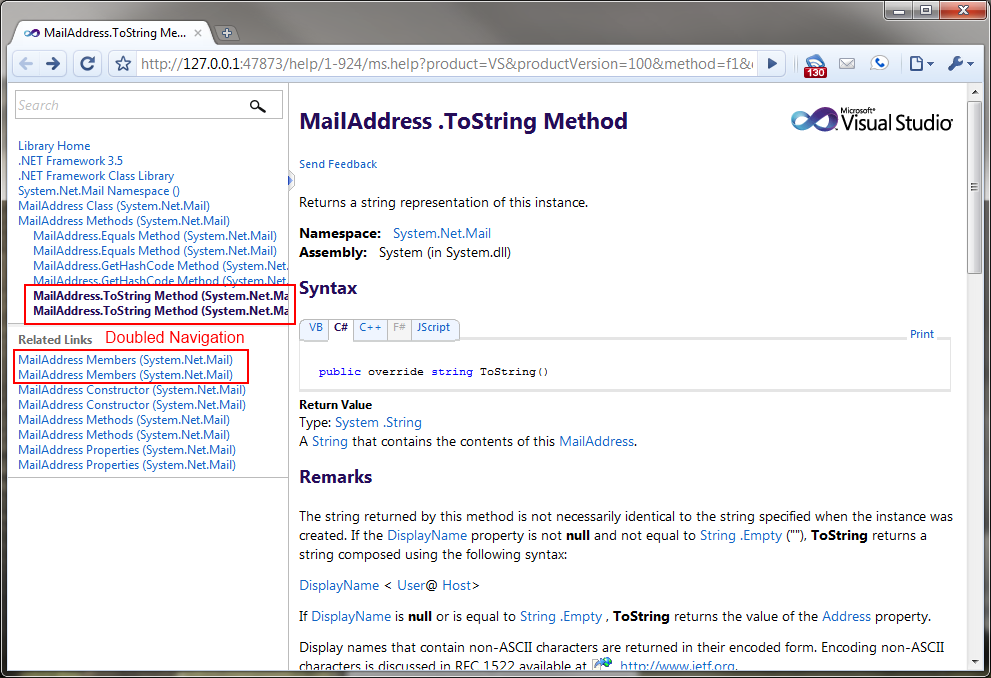
Unfortunately, it doesn’t make much sense if you install both the v3.5 and 4.0 documentation. Firstly, the 4.0 documentation seems to be a superset of the entire 3.5 library. Secondly, installing both inserts two links for every article into all the navigation but both links resolve to the same document and that document specifies which version of the Framework the API is supported in.

doubled-navigation

I don’t see much point in installing more than one version of the .NET Framework documentation. Just stick with the .NET Framework 4 documentation that ships as part of the default options. It will update from online sources when changes are published.

Gulf Arab States to Block Blackberry

UAE and Saudi Arabia are set to block Blackberry email service because it is too secure. Both nations are unhappy that they can’t read email sent via the Blackberry device because all of the messages are encrypted and transferred to RIM servers in Canada for delivery. If the recipient is also a Blackberry, the message transfer is encrypted end-to-end. Thus, no snooping. There are close to a million Blackbery users collectively in UAE and Saudi and their devices are about to stop working.

But what is the point? This is simply an inconvenience to legitimate users and unlikely to yield any security benefit because there is nothing to stop people from using web-based email encrypted over SSL (like gmail) or other smart phones such as Android and iPhone which supported transport layer security ensuring that nobody is snooping on the message traffic to the server.

Also, unless they plan to block all Blackberry data service, there is nothing stopping Blackberry users from using a non-RIM email app like the gmail app for Blackberry or RIM’s gmail plugin.

Is Dubia really planning to disable all Blackberry mail service in October? How does that gibe with their desire to be an international business hub?

I’m left scratching my head because this seems totally irrational.

Update

It seems UAE is taking a much harder line on this. They are planning to block all data service to the Blackberry handset. Saudi is only interested in blocking the Blackberry Messenger encrypted Blackberry-to-Blackberry instant messaging. UAE and Saudi claim that they are worried about intercepting terrorist communications but all of these measures are wrong-headed solutions that punish legitimate users. They don’t stop terrorists from moving on to the next technology but they do disrupt business which is not so agile. In this case it seems that all other smart phones besides Blackberry are fine including those that use Microsoft’s ActiveSync which is fundamentally HTTP data encrypted over an SSL channel are permitted. That includes Microsoft Exchange-based and Google Apps services and iPhone OS/iOS, Android and Windows –based handsets.

Run Process Explorer x64 LUA from Program Files without UAC prompts

procexpProcess Explorer by Mark Russinovich is a great improvement over the Task Manager program that ships with Windows. It give a ton of information about processes running on your computer. It keeps presents a full range of stats on every process including memory consumption and CPU time, loaded DLLs and open handle, strings embedded in the binary, environmental variables defined for the process, the full arguments used to start the process and nifty tools to find a process or a handle and a handy restart process. It is a great aid to debugging. ProcExp has some quirks when running on x64 Windows, though.

I have run my workstation as a “User” without admin rights for over 12 years since the days when I started running NT4 on my laptop. I used to have to log out and log in as an “Administrator” to install software or make system changes. There were tweaks you could make to dial back the security for some little things like creating a security role that could change the system date and time (which allows you to open the old-style date and time applet by clicking on the taskbar clock). With Windows 2000, things got a lot better with the runas service (like su(1) on UNIX)  but there were still some painful quirks because, for example, some software expects to be installed by the same admin user account that is using it. That’s where Aaron Margolis’s excellent makemeadmin script comes in. And finally with Windows Vista, we get UAC which, is nothing more than a speedbump warning system if you are an Administrator. However, if you are a non-Admin user it is a graphical just-in-time way to change the security of a running process by giving it Administrator credentials.

One of the main advantages of running with a limited user account (LUA) is that binaries in Program Files where they are protected from tampering by something malicious that you might accidentally invoke. For example, if you got hit with a zero-day browser flaw the worst (and this is very bad) thing that can happen is to have your personal data stolen or corrupted. The system itself cannot be subverted. Rogue usermode binaries cannot be installed and neither can drivers be installed. Hence, you cannot become part of a botnet and this is a very good thing.

Furthermore, most commodity attacks for Windows go straight for installing a rootkit without passing Go. That means instead of doing something bad to you that could succeed they try to do something worse that can’t and they crash doing nothing. That’s not a promise, just a generalization. AppLocker is what you need to take LUA to the next level to prevent unauthorized code from executing at all.

Anyway… Enough back story. Suffice it to say that I run my system without administrative rights and I don’t want to be typing in my admin credentials unless actually necessary.

The problem is that the x64 version of Process Explorer is embedded inside of the 32-bit version. When you invoke the 32-bit version of ProcExp on x64 Windows, procexp.exe extracts procexp64.exe into the same directory where it is currently running and starts procexp64.exe. If you have your Sysinternals tools in Program Files then in Vista or later with UAC turned on this generates a UAC prompt because procexp.exe is trying to write to the protected Program Files directory tree. (On Windows Server 2003 x64 or Windows XP x64 you get an access denied.) After procex64.exe exits the file is deleted.

ProcExp can actually run just fine without elevated permissions unless you need process details for a service or some other process running with another user’s credentials and procexp has a way to elevate itself to deal with that scenario, just like Task Manager.

Here is the trick to get procexp working LUA in Program Files on x64:

  • Download the procexp ZIP archive from Technet
  • Extract the ZIP file somewhere and run procexp.exe
  • Accept the license prompt
  • Make a copy of procexp64.exe (CTRL+C, CTRL+V will suffice)
  • Exit procexp.exe.
  • Delete procexp.exe.
  • Rename your copy of procexp64.exe to procexp.exe
  • Copy procexp.exe to your Sysinternals folder in “C:\Program Files”

Mark Russinovich could also solve this issue to either releasing a standalone x64 binary of procexp or changing the behavior of the extraction so that procexp64.exe doesn’t get deleted on exit (meaning you would just elevate once). In the mean time, the workaround isn’t too painful.