Command Prompt and PowerShell Here with Console.exe
August 11, 2010 4 Comments
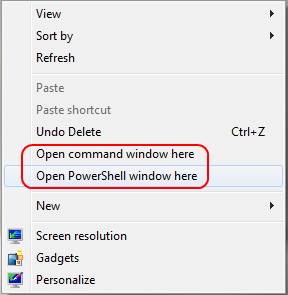 In antediluvian turn of the century days, there was an Open Command Window Here PowerToy. When Vista was released, this functionality was baked in to the default Explorer shell. Hold {SHIFT} and right-click on a drive, directory or the background of a directory and you will have an “Open command window here” option in the resulting context menu. Although PowerShell is installed by default on Windows 7, there is no parallel “Open PowerShell window here” option, but it can be easily added.
“Open PowerShell window here”
Windows Registry Editor Version 5.00

[HKEY_CLASSES_ROOT\Directory\shell\powershell]
@="Open PowerShell window here"
"Extended"=""
[HKEY_CLASSES_ROOT\Directory\shell\powershell\command]
@="C:\\Windows\\system32\\WindowsPowerShell\\v1.0\\powershell.exe -NoExit -Command Set-Location -LiteralPath '%V'"

[HKEY_CLASSES_ROOT\Directory\Background\shell\powershell]
@="Open PowerShell window here"
"Extended"=""
[HKEY_CLASSES_ROOT\Directory\Background\shell\powershell\command]
@="C:\\Windows\\system32\\WindowsPowerShell\\v1.0\\powershell.exe -NoExit -Command Set-Location -LiteralPath '%V'"

[HKEY_CLASSES_ROOT\Drive\shell\powershell]
@="Open PowerShell window here"
"Extended"=""
[HKEY_CLASSES_ROOT\Drive\shell\powershell\command]
@="C:\\Windows\\system32\\WindowsPowerShell\\v1.0\\powershell.exe -NoExit -Command Set-Location -LiteralPath '%V'"
Use Console.exe Windows
If you use command-line a lot in Windows, you will appreciate the advantages of using console.sf.net as the terminal window. The “Open … window here” context menus can be tweaked to open the new command prompts in Console rather than vanilla Windows CSRSS console windows.
"Open command window here” with Console
Windows Registry Editor Version 5.00

[HKEY_CLASSES_ROOT\Directory\shell\cmd]
@="@shell32.dll,-8506"
"Extended"=""
"NoWorkingDirectory"=""
[HKEY_CLASSES_ROOT\Directory\shell\cmd\command]
@="\"C:\\Program Files\\Console2\\Console.exe\" -r cmd.exe -d \"%V\" -w \"Command Prompt\""

[HKEY_CLASSES_ROOT\Directory\Background\shell\cmd]
@="@shell32.dll,-8506"
"Extended"=""
"NoWorkingDirectory"=""
[HKEY_CLASSES_ROOT\Directory\Background\shell\cmd\command]
@="\"C:\\Program Files\\Console2\\Console.exe\" -r cmd.exe -d \"%V\" -w \"Command Prompt\""

[HKEY_CLASSES_ROOT\Drive\shell\cmd]
@="@shell32.dll,-8506"
"Extended"=""
"NoWorkingDirectory"=""
[HKEY_CLASSES_ROOT\Drive\shell\cmd\command]
@="\"C:\\Program Files\\Console2\\Console.exe\" -r cmd.exe -d \"%V\" -w \"Command Prompt\""
“Open PowerShell window here” with Console
Windows Registry Editor Version 5.00

[HKEY_CLASSES_ROOT\Directory\shell\powershell]
@="Open PowerShell window here"
"Extended"=""
[HKEY_CLASSES_ROOT\Directory\shell\powershell\command]
@="\"C:\\Program Files\\Console2\\Console.exe\" -r C:\\Windows\\system32\\WindowsPowerShell\\v1.0\\powershell.exe -d \"%V\""

[HKEY_CLASSES_ROOT\Directory\Background\shell\powershell]
@="Open PowerShell window here"
"Extended"=""
[HKEY_CLASSES_ROOT\Directory\Background\shell\powershell\command]
@="\"C:\\Program Files\\Console2\\Console.exe\" -r C:\\Windows\\system32\\WindowsPowerShell\\v1.0\\powershell.exe -d \"%V\""

[HKEY_CLASSES_ROOT\Drive\shell\powershell]
@="Open PowerShell window here"
"Extended"=""
[HKEY_CLASSES_ROOT\Drive\shell\powershell\command]
@="\"C:\\Program Files\\Console2\\Console.exe\" -r C:\\Windows\\system32\\WindowsPowerShell\\v1.0\\powershell.exe -d \"%V\""
Restore Defaults
For PowerShell, remove the powershell keys from beneath HKCR\Directory\shell, HKCR\Directory\Background\shell and HKCR\Drive\shell.
“Open command window here” restore default
Windows Registry Editor Version 5.00

[HKEY_CLASSES_ROOT\Directory\shell\cmd]
@="@shell32.dll,-8506"
"Extended"=""
"NoWorkingDirectory"=""
[HKEY_CLASSES_ROOT\Directory\shell\cmd\command]
@="cmd.exe /s /k pushd \"%V\""

[HKEY_CLASSES_ROOT\Directory\Background\shell\cmd]
@="@shell32.dll,-8506"
"Extended"=""
"NoWorkingDirectory"=""
[HKEY_CLASSES_ROOT\Directory\Background\shell\cmd\command]
@="cmd.exe /s /k pushd \"%V\""

[HKEY_CLASSES_ROOT\Drive\shell\cmd]
@="@shell32.dll,-8506"
"Extended"=""
"NoWorkingDirectory"=""
[HKEY_CLASSES_ROOT\Drive\shell\cmd\command]
@="cmd.exe /s /k pushd \"%V\""
 I have a confession. When .NET and C# beta came out in 1999, I was confused by the definition of struct as a “value type” allocated on the stack and class as a “reference type” allocated on the heap. We were told structs are lean and fast while classes are heavy and slow. I distinctly recall searching for every imaginable opportunity to use the struct keyword. I further recall being confused by the statement that everything in C# is passed by value and by the ref and out keywords. I used ref whenever I wanted to modify values in a formal parameter regardless of whether they were structs or classes. What I didn’t realize at the time was that ref and out are really just an explicit use of a pointer. Ref and provide a mechanism to manipulate a value type by pointer instead of manipulating a local copy. For reference types, though, using ref and out is the moral equivalent of using a pointer-to-pointer in C and it is rarely necessary or correct.







 Brian Reiter's Thoughtful Code